Showing posts with label upgrade. Show all posts

Sunday, September 21, 2014

What have got against Android's?

What have you got against Android's? This was question posed to me from an Android phone user after seeing my iPhone. He had a defensive tone to his voice. I told him I really didn't have anything against them. I thought some of them looked pretty cool. If that's what you want then go for it.

I'm still trudging along in my aged iPhone 4 and I'm sure to be going with the iPhone 6 really soon. I no intention of jumping the good ship Apple anytime soon. They've worked well for me so far. I like the consistency and quality that goes into them.

It would seem that other smartphone users have an inferiority complex about the iPhone. It still remains a benchmark as the one to meet or beat in the smartphone market. I've seen many phones that are bigger to the point of being a small tablet. I actually don't see the point of having a huge phone like that. It's a nice option but not always practical. 
 

Saturday, November 15, 2008

Upgrade: Ubuntu 8.04 to 8.10


This one is for those Linux fans out there. I made the plunge and decided to upgrade my Linux PC from Ubuntu 8.04 (Hardy Heron) to 8.10(Intrepid Ibex, where they get these names I'm not sure). I run my Ubuntu on an older Pentium III Compaq for the sake of trying out Linux. In truth I don't use it a whole lot but it is useful and it kills time some days. I'm not going to get super detailed step by step instruction but, maybe just share my thoughts and experience with it.

My first recommendation is to visit the Ubuntu website which has instructions on getting you started. One of the first things they recommend is to make sure your current version 8.04 is up to date. So you go to the Update Manager by going to the System->Administration->Update Manager.
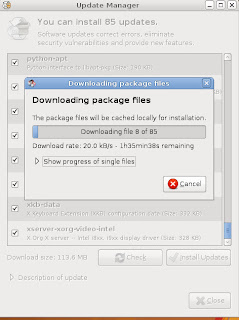

I click Check button and find out I have 85 updates to do. Like I said I haven't used this in awhile so I got behind a bit. Yours may actually vary. So I click Install Updates and begin the process.
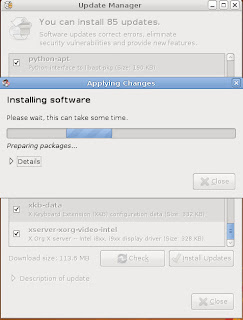
They aren't kidding when they say "Please wait, this can take some time".
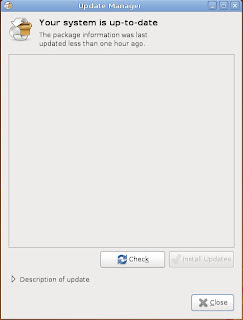
This is what it should look like when your done updating. It does take some time so don't be in a rush.
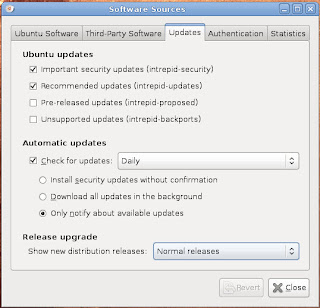

Now you have to tell Ubuntu what type of upgrade to look for. You go to System, then Administration and then to Software Sources. When the window comes up go to the Updates tab. Where it says Release upgrade select Normal releases.
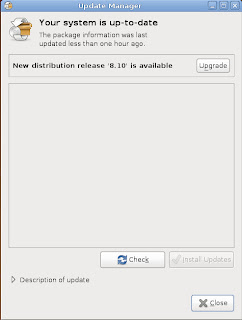

Now you go back to the Update Manager and now it will say New Distribution release "8.10" is available. Click on Check and the process will start.
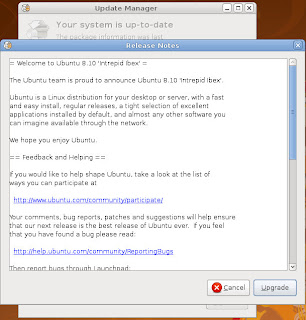

You'll get a window with some release notes. You'll then click on Upgrade.
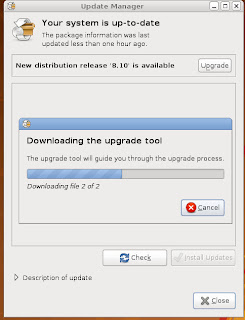

Now you'll be downloading the upgrade tool.
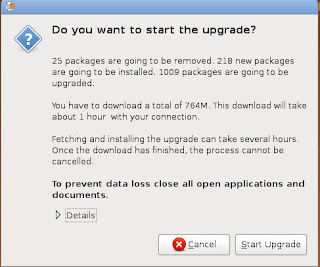


Now this seems like a silly question. Do you want to start the upgrade? Of course I do. Be for warned though put aside a great chunk of time before you start. Put an addition on the house or write that novel that you've always wanted to do. I am exaggerating but, don't expect do much on your computer for a few hours.
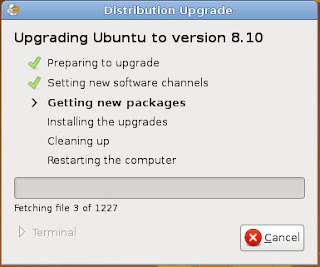


The process now begins. The download is an estimated 764mb so it will take awhile depending on your connection. If your on dial-up your in trouble. I'd get the CD somewhere before attempting this as it probably take days instead of hours I would imagine.
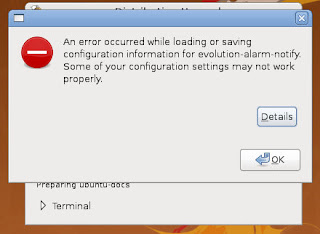


Of course you don't think this went without any glitches. I clicked ok and then got this message....
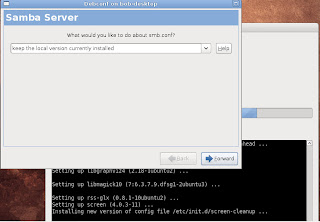


To be honest I don't even know what Samba Server does.I made note of this for troubleshooting later and the upgrade continued...
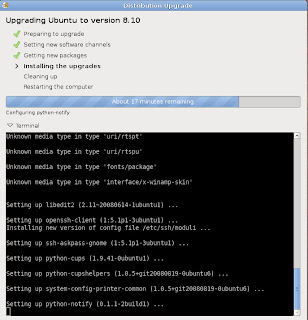


On to the next step...
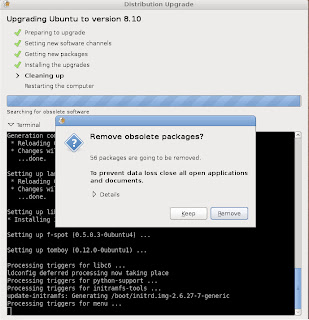


Not sure why we'd want to keep them. Perhaps as a backup in case something went awry. I decided to live dangerously and removed them.
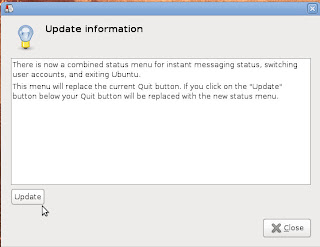
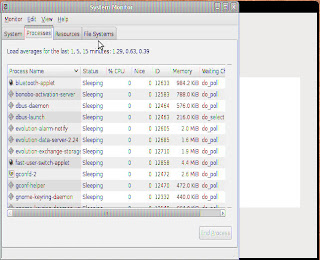
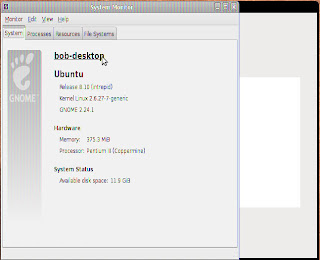


Now we see that I'm running Ubuntu 8.10.At some point the system reboots. I can't remember if it was automatic or I had to do it manually. It seems I have a graphics card or screen resolution problem. I'll troubleshoot that when I have some time. It went successfully though. I don't notice much difference. My text in the System Monitor comes in discolored though. It seems to some type of graphics problem. This is an older machine and may be struggling to keep up. Figuring out the problem will give me something to do when I have some free time (haha yeah right who am I kidding). Anyway like I hinted at before this does take a considerable amount of time. I believe it took me close 6 hours or so on broadband (cable) connection. It's not for the faint of heart. Good luck and I hope this is of some use to someone. Thanks and have a great day!

Friday, October 31, 2008

Upgrade From Ubuntu 8.04 to 8.10 - Part 1

This for those Ubuntu fans out there. Apparently Ubuntu has an update. This video from PCMech showing how to to upgrade from 8.04 to 8.10. I'll be giving it a try soon and I'll let you know what happens.

Friday, October 17, 2008

Upgrading memory

The patient: HP Pavilion a705w


Well my memory from Crucial technology came in yesterday and I already installed and up and running. Now my HP Pavilion a705w works much faster without many hangups. I went from 256mb of RAM to 1.24 GB of RAM. The difference is amazing. Upgrading your RAM will give you the most bang for your buck as far as system upgrades. Here is how simple it was:

This is the new memory from Crucial Technology. For those who like specifics its a 1GB DDR PC2700 184-pin DIMM, Crucial part no. CT410256.


Open the case....


Before touching anything inside be sure and ground yourself either by using a wrist strap or the very least touching any bare metal on the case. Static + PC components = Very BAD

Here is our memory module. Always be sure and only touch the outside edges.


Find the open slot. There is a notch in the memory chip to insure correct placement. It should pop in with a firm push. If your having trouble turn it around as you may be putting the wrong way.

After booting the machine I see I have 1.24 GB of RAM. That certainly put a smile on my face. This took no more than ten minutes. The longest part was waiting for the part to come in. I'm going to add another 1 GB in the near future. It runs great. If you've had your system for awhile and it's running slow this may give you a boost. I notice many manufacturers put the minimum amount in the PC's so usually this is an easy upgrade. If you need help please let me know I'd be glad to help. Thanks and have a great day!

Sunday, October 12, 2008

How to purchase RAM

A common complaint about computers after awhile is that after awhile they run slow. One way to speed up your PC is to upgrade your RAM (or Random Access Memory). Upgrading your memory isn't as hard as you might think. If your not squeamish about opening a PC case and can use a screwdriver your all set. How do you know what memory to use? A favorite tool of mine is Crucial Technology. I'm going to show here how easy it is to order memory for your PC from Crucial.

  1. First obviously is open your browser (Internet Explorer is recommended, you'll see why in a second) and go to http://www.Crucial.com .
  2. You have a choice of using Crucial's System Scanner or Memory Advisor. Crucial System Scanner requires Internet Explorer to run. It will automatically scan your system hardware. The Crucial Memory Advisor is the manual way of looking up if you know your make and model of computer your using. I prefer the automatic method as it's more foolproof in my opinion.
  3. To use Crucial System Scanner you click on the Scan My System button.
  4. Click the box to agree to Terms and Conditions and the click Start my Scan.
  5. Now Crucial will now scan your hardware.
  6. When it is done Crucial will make there recommendations and combinations you can configure.
  7. They will also provide some basic information about your system. Especially handy is how many slots you have available and usually how much memory your system can handle.
  8. Make your selection and click "Add To Basket" and your on your way.
Then you go through your standard purchase online. I've found there shipping prices quite reasonable. I've recomended them to others and I've been very satisfied with there product and service. Now when this shipment comes in I'll go over how to install this in your PC. I hope you'll join me for that. Until then thanks for coming by.

Sunday, July 20, 2008

How can I speed up my computer?

This is a fairly common PC question. Now there are numerous tips and tricks you can do on the software side. Some work and some don't. As far as hardware goes, one of the quickest ways to add speed is to add more memory (aka: RAM or Random Access Memory). You'll probably see more difference with a memory upgrade than most other's aside from perhaps a new video card. How do you know what to add? Well with the numerous different hardware configurations it can be confusing. Some memory vendors or manufacturers websites can help you a lot. I'm going to highlight a couple of my favorites.

First up is Crucial Technologies. Crucial I've used many times and I've been very happy with both service and they are reasonably priced. If you go to the Crucial home page you can look up what you need both manually and automatically. To use manual method(Aka: Crucial Memory Advisor Tool)you need to know the manufacturer of your PC and model number. If your unsure or if you have a custom or home built PC you can use the "Crucial System Scanner". This will scan your PC and tell you what you can use. They'll give info on your PC such as how much you memory you have, how many slots you have open and what your system can handle. FYI if you use Firefox or Opera as a browser you have to download a quick add-on. Otherwise just switch to Internet Explorer. The memory is guaranteed to be compatible with your system.

Another vendor that has a similar set up is MemoryStore.com. Same idea though . You can look up your memory either by manual method or a system scan. I like the system scan method because it takes out much of the guess work. Other manufacturers to try out are PNY and Kingston Technologies are alternatives to try (without the system scan). I wish you luck and happy computing!